
Overview
This guide explains how to customize your iTrade Dashboard by adding or removing widgets. Personalizing the dashboard allows you to display the information most relevant to your role and daily activities.
Step 1: Open Dashboard Personalization
- From the dashboard, click Personalize.
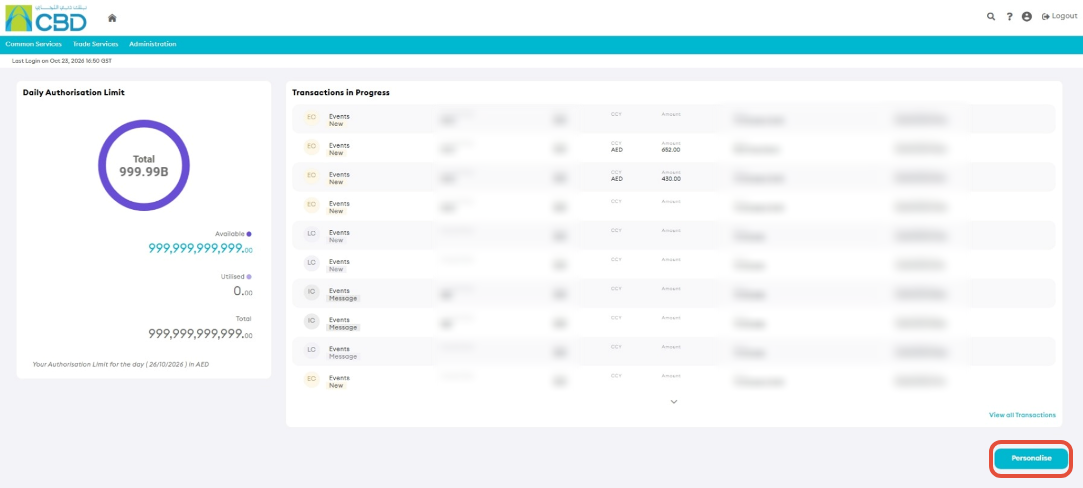
This will open the dashboard personalization screen, where you can manage the widgets displayed on your dashboard.
Step 2: Add New Widgets
- Click the Plus (+) icon to add a widget.
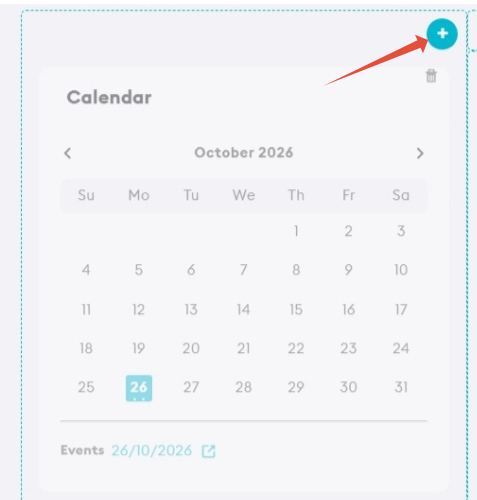
The available widgets will be displayed in the widget selection area.
Step 3: Select Widgets
Review the list of available widgets.
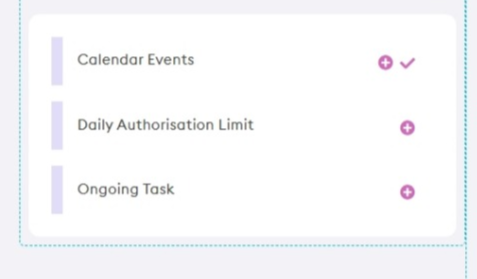
Widget Status Indicators
- Widgets marked with a tick icon are already displayed on your dashboard.
- Widgets without a tick icon are not currently displayed.
To add a widget:
- Click the Plus (+) icon next to the required widget.
- The widget will be added to your dashboard layout.
Support Tip: Add only the widgets you use regularly to keep the dashboard organized and easy to navigate.
Step 4: Remove Existing Widgets
To remove a widget from the dashboard:
- Locate the widget you want to remove.
- Click the Trash Bin icon.
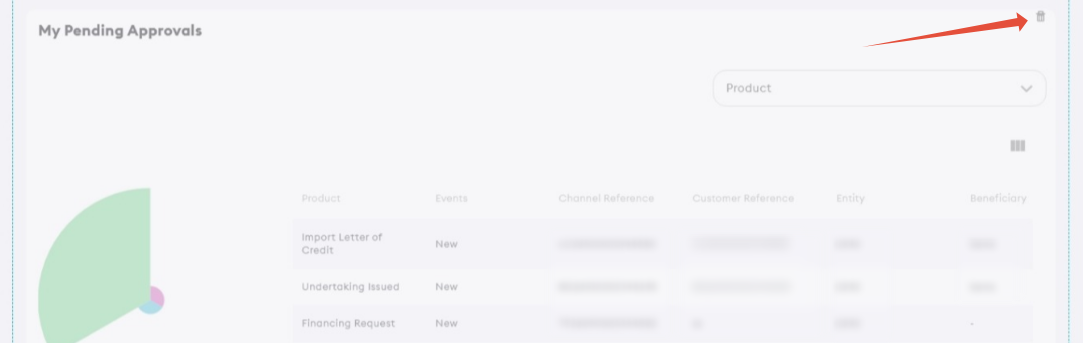
The widget will be removed from your dashboard layout.
Note: Removing a widget from the dashboard does not remove the feature from iTrade. It only removes the widget from your personal dashboard view.
Step 5: Save Your Changes
After adding or removing widgets:
- Review your dashboard layout.
- Click Save to apply the changes.
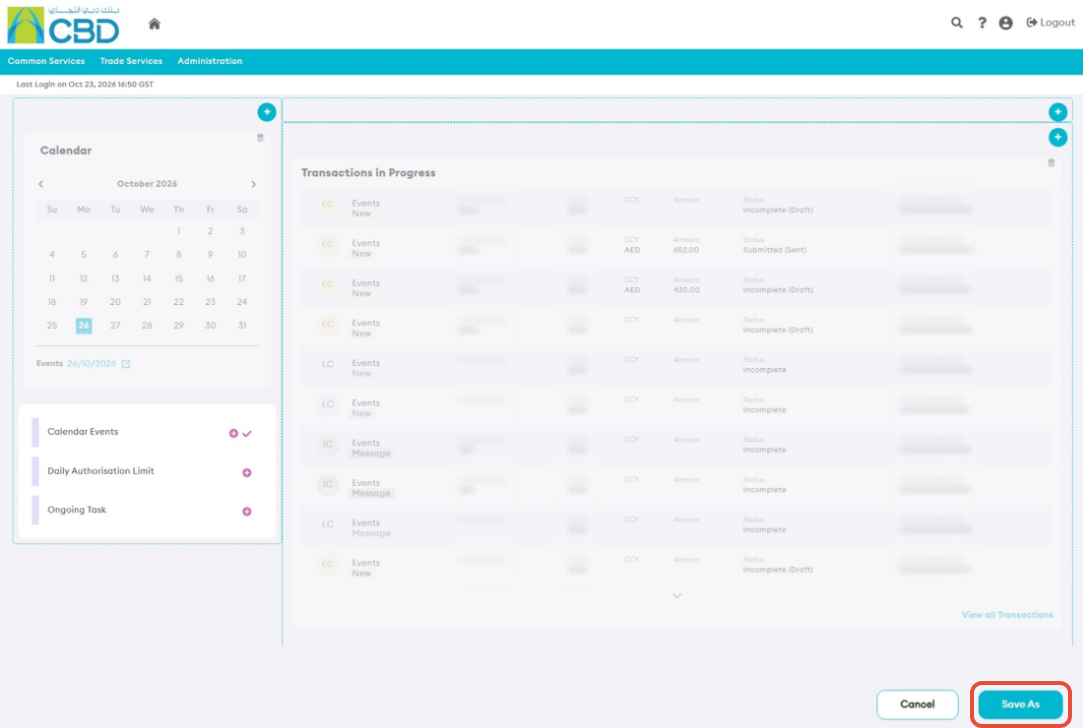
Your personalized dashboard configuration will be saved and displayed the next time you access iTrade.