
Overview
This guide provides step-by-step instructions for submitting an Assignment Request for an Export Letter of Credit (LC) through iTrade.
The Assignment function allows the beneficiary of an Export Letter of Credit to submit assignment instructions and customer instructions for an existing Export Letter of Credit.
Step 1: Access Export Letter of Credit Services
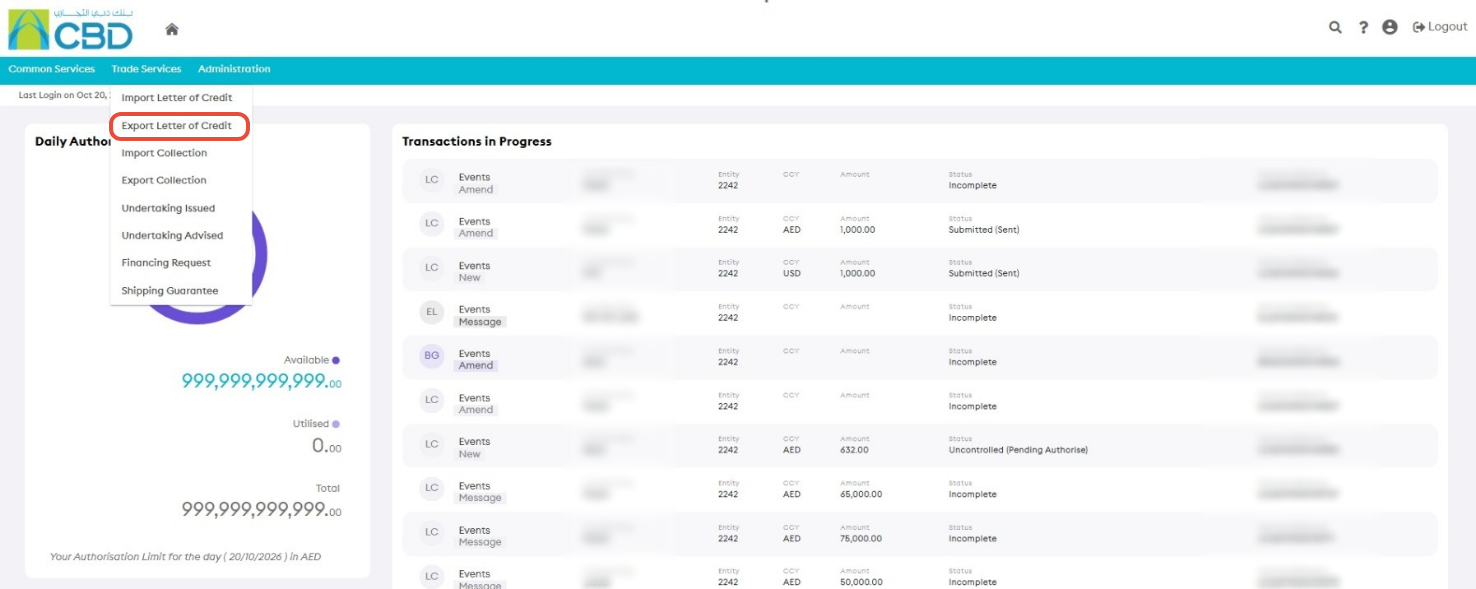
- From the iTrade Dashboard, select Trade Services.
- Click Export Letter of Credit.
Step 2: Open the Live Tab
- Select the Live tab.
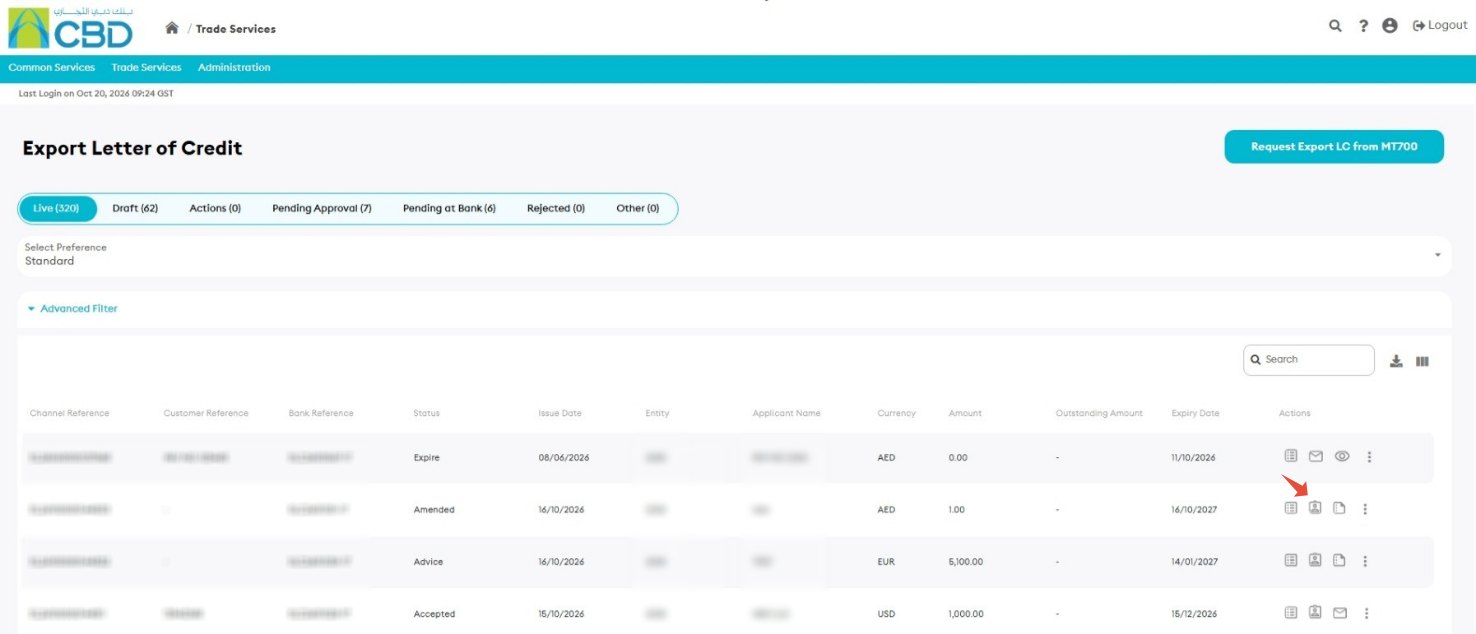
The Live tab displays all active Export Letter of Credit transactions available for further actions and enquiries.
Step 3: Open the Assignment Request
- Locate the Export Letter of Credit that you want to assign.
- Click Assignment for the selected Export Letter of Credit.

This will open the Assignment request form.
Important: Verify that the correct Export Letter of Credit has been selected before proceeding with the assignment request.
Step 4: Complete the Assignment Details
Enter the required assignment information.
Assignment Conditions
Provide the assignment conditions applicable to the Export Letter of Credit.
Customer Instructions
Enter any additional instructions that should be submitted with the assignment request.
Review all entered information carefully before proceeding.
Support Tip: Ensure that all assignment details and customer instructions are complete and accurate to avoid delays in processing.
Step 5: Review and Submit
- Review the assignment information.
- Verify the assignment conditions and customer instructions.
- Click Submit.
The assignment request will be submitted for processing.
Step 6: Confirmation
After successful submission:
- An acknowledgment message will be displayed.
- The assignment request status will be updated.
- The request will be forwarded for processing.