
Overview
This guide provides step-by-step instructions for creating an Export Letter of Credit request in iTrade using an uploaded MT700 or MT701 SWIFT message.
The uploaded MT700/MT701 message is used to populate the Export Letter of Credit request, reducing manual data entry and helping ensure the information matches the received Letter of Credit.
Step 1: Access Export Letter of Credit Services
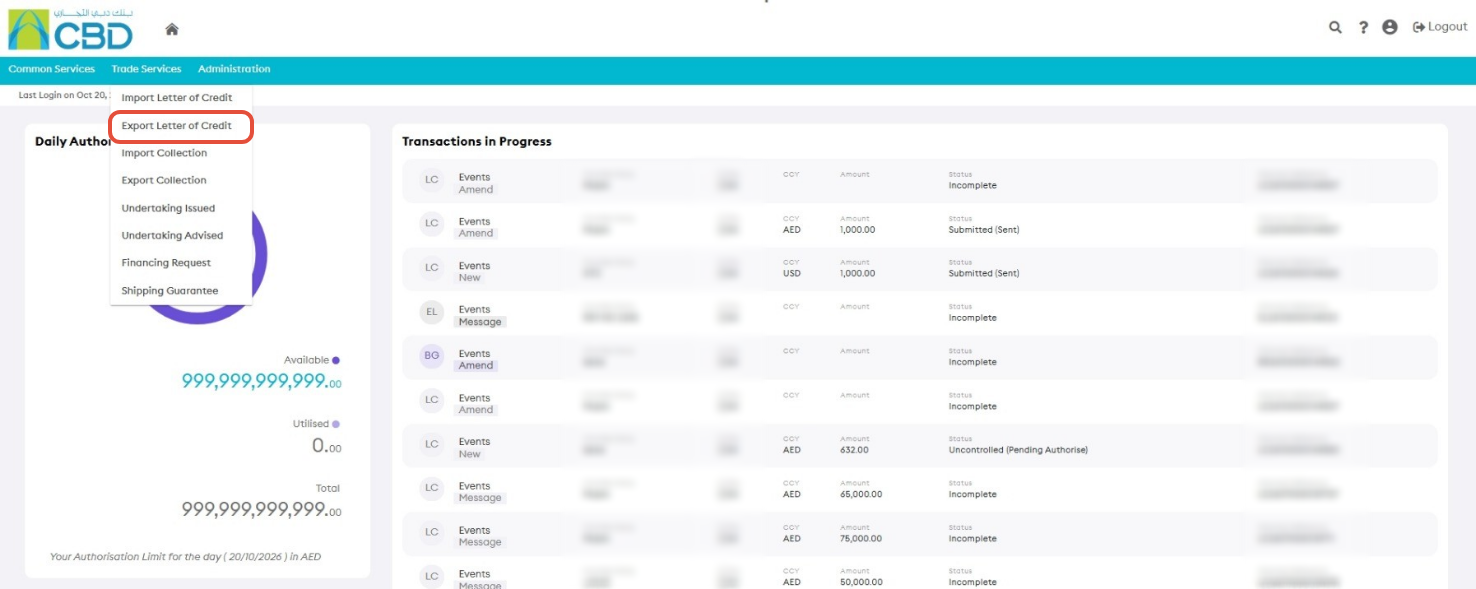
- From the iTrade Dashboard, select Trade Services.
- Click Export Letter of Credit
Step 2: Create an Export Letter of Credit from MT700
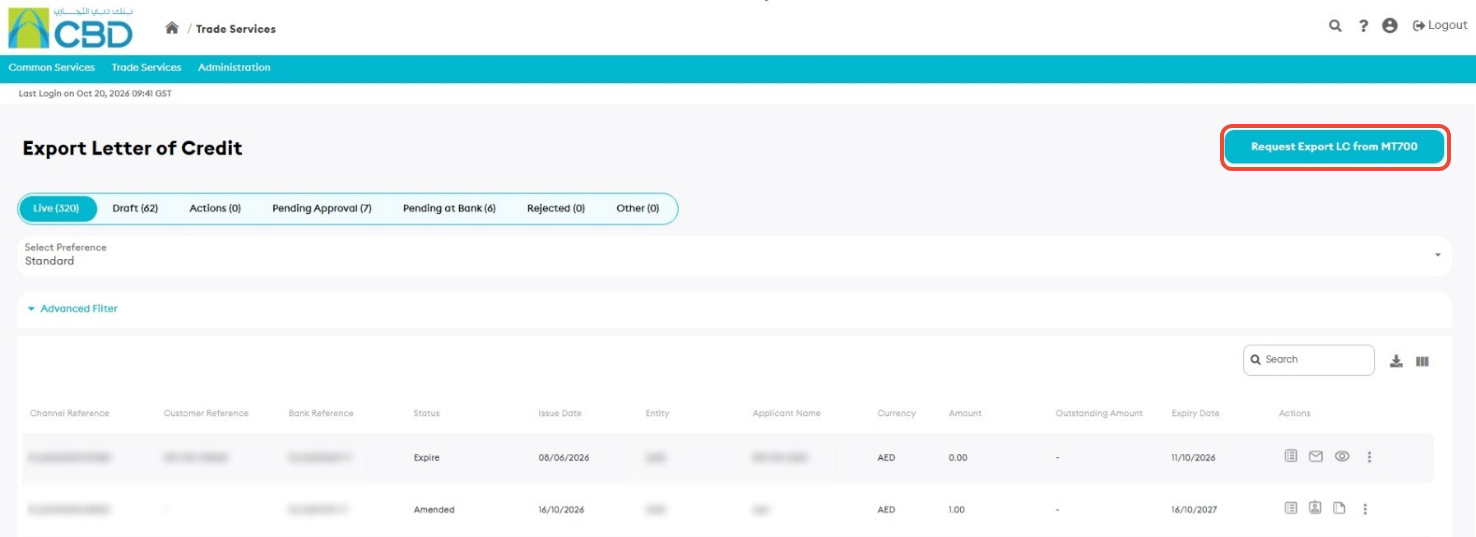
- Click Request Export LC from MT700.
Step 3: Complete the General Details
Enter all mandatory fields marked with a red asterisk (*).
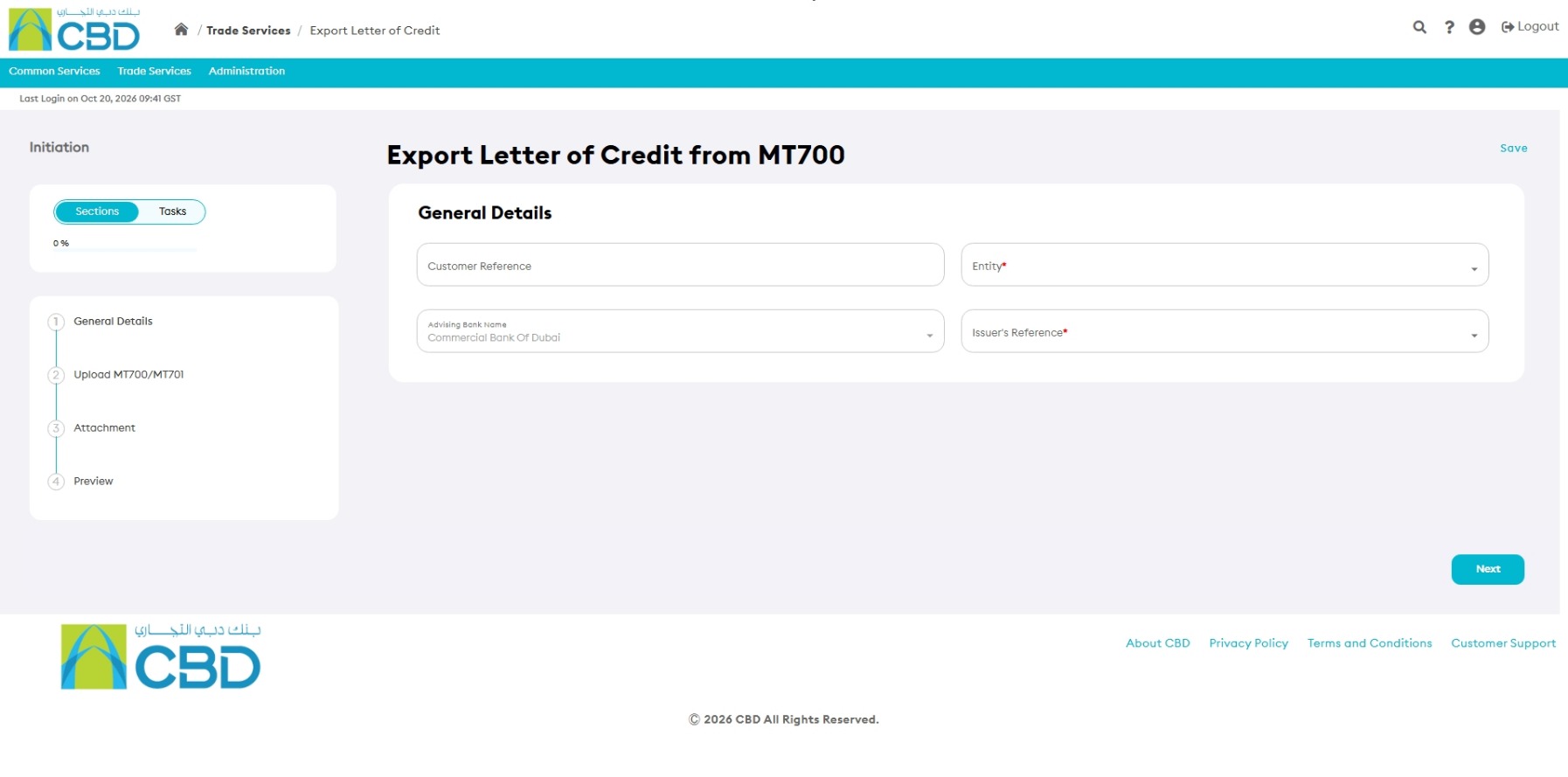
Navigation Tip: Use Next and Previous to move between sections, or select a section directly from the navigation panel on the left side of the screen.
Customer Reference
Enter a reference that will be used internally within your organization to identify the Export Letter of Credit.
Entity
Select the applicable entity from the available list.
Advising Bank Name
This field is populated automatically based on the uploaded message.
Issuer's Reference
This field is populated automatically from the uploaded MT700/MT701 message.
Step 4: Upload the MT700 / MT701 Message
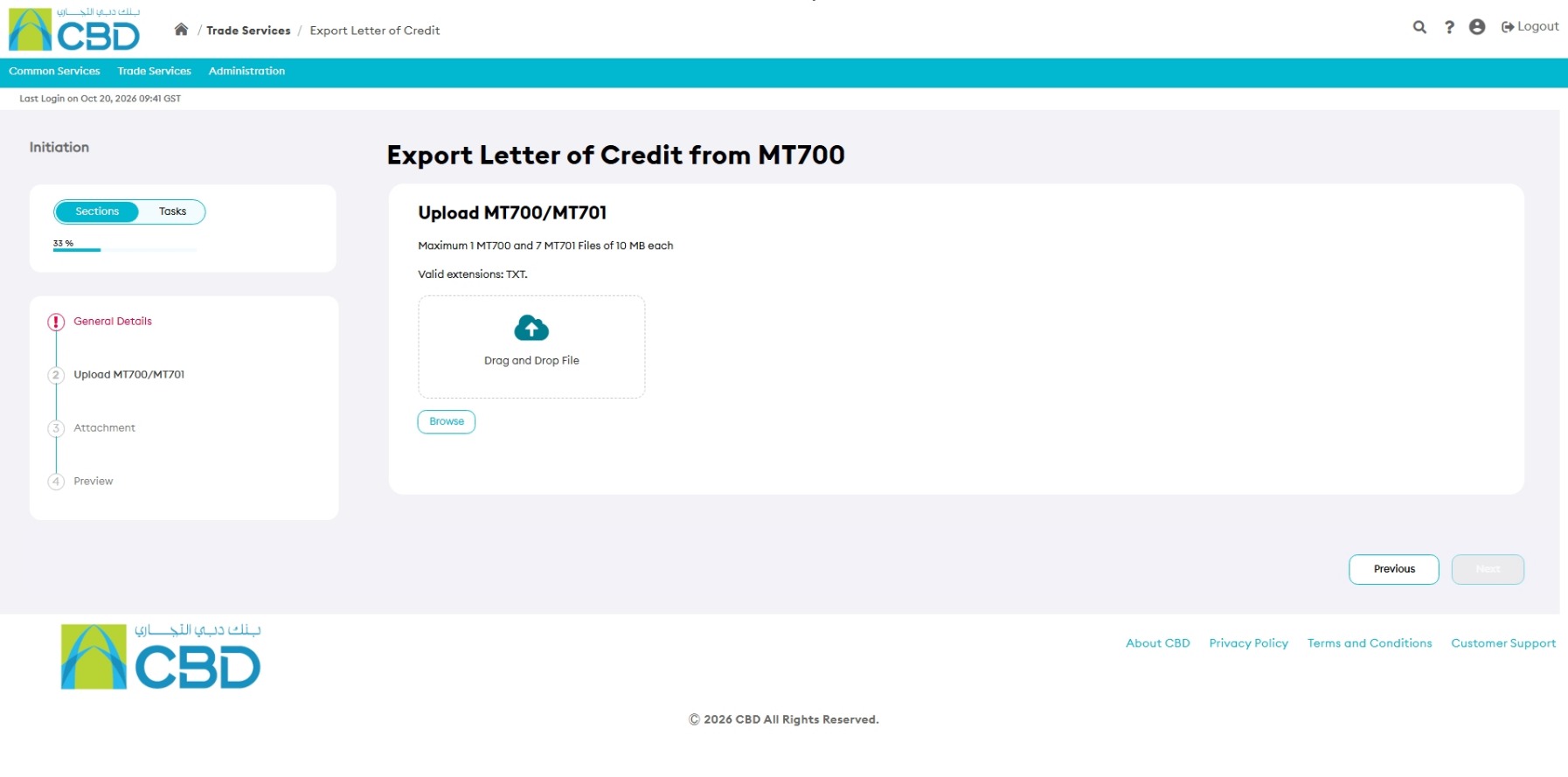
Upload the SWIFT message that will be used to create the Export Letter of Credit request.
- Click Browse, or
- Drag and drop the file into the upload area.
- Select the required MT700 or MT701 file.
Step 5: Upload Supporting Documents
Attach any supporting documentation required for the request.
Supported Upload Methods
- Drag and Drop
- Browse
Attachment Limits
- Maximum of 5 files
- Maximum file size: 5 MB per file
Supported File Types
|
|
|
Examples of supporting documents include:
- Proforma Invoice
- Specimen Signature
- Supporting Trade Documents
Step 6: Review the Application
Open the Preview section and review all information before submission.
Verify:
- Customer Reference
- Entity
- Advising Bank Information
- Issuer's Reference
- Uploaded MT700 / MT701 File
- Supporting Documents
If any changes are required, return to the relevant section and update the information.
Step 8: Confirmation
After successful submission:
- A confirmation message will be displayed.
- The Export Letter of Credit request will be created.
- The transaction can be monitored through the Export Letter of Credit Dashboard.