
Overview
This guide provides step-by-step instructions for creating and submitting an Islamic Shipping Guarantee request through iTrade.
An Islamic Shipping Guarantee enables the release of goods before the original shipping documents are received, subject to the bank's approval and applicable Islamic trade finance requirements.
Prerequisite: Users must have the appropriate permissions to initiate an Islamic Shipping Guarantee request. If access is unavailable, contact your Corporate Administrator.
Step 1: Access Shipping Guarantee Services
- From the iTrade Dashboard, select Trade Services.
- Click Shipping Guarantee.
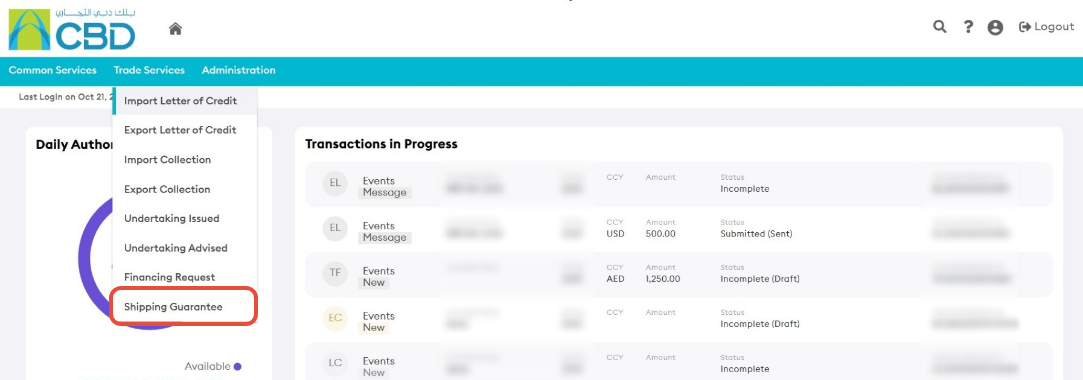
This will open the Shipping Guarantee Dashboard.
Step 2: Create a New Islamic Shipping Guarantee
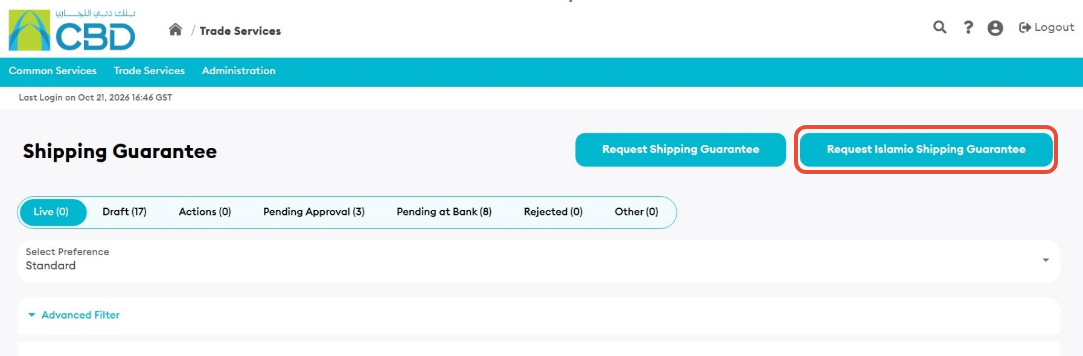
- Click Request Islamic Shipping Guarantee.
The Islamic Shipping Guarantee application form will open.
Step 3: Complete the General Details
Enter all mandatory fields marked with a red asterisk (*).
Navigation Tip: Use Next and Previous to move between sections, or select a section directly from the navigation panel on the left side of the screen.
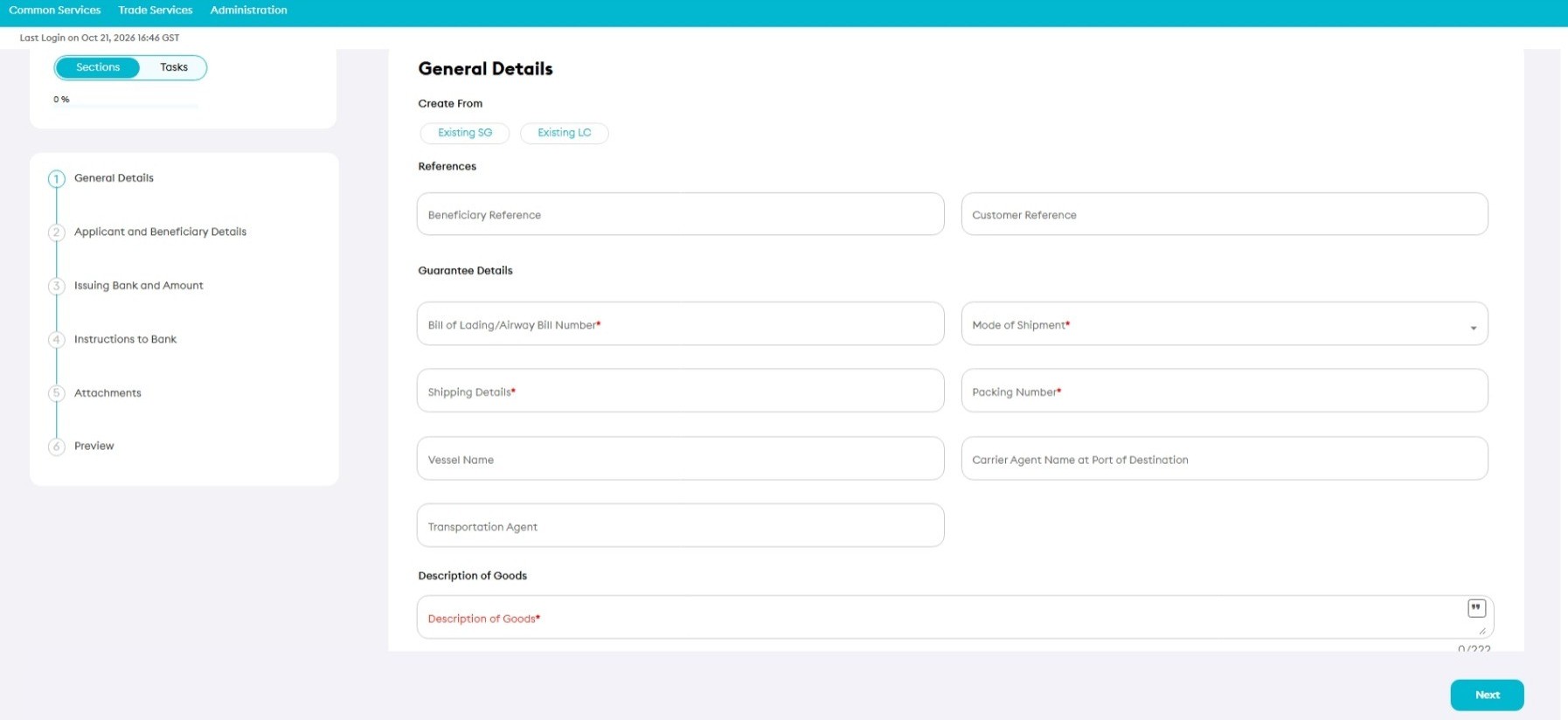
Create From
You can create the Shipping Guarantee using:
- Existing Shipping Guarantee (SG)
- Existing Letter of Credit (LC)
Beneficiary Reference
Enter a reference for the beneficiary, if required.
Customer Reference
Enter an internal reference that will be used by your organization to identify the Shipping Guarantee request.
Bill of Lading / Air Waybill Number
Enter the reference number of the:
- Bill of Lading (BL)
- Air Waybill (AWB)
- Other shipping document
against which the guarantee is being issued.
Mode of Shipment
Select the applicable transportation method from the available options.
Shipment Details
Enter shipment information, such as the vessel, aircraft, cargo, or transportation details.
Packing Number
Enter the applicable packing number.
Vessel Name
Enter the vessel name, where applicable.
Carrier
Enter the carrier or shipping agent's name at the destination port.
Transportation Name
Enter the transportation provider or transportation reference.
Description of Goods
Provide a detailed description of the goods covered by the Shipping Guarantee.
This may include:
- Product descriptions
- Marks and numbers
- Package details
- Contents of the shipment
Step 4: Complete Applicant and Beneficiary Details
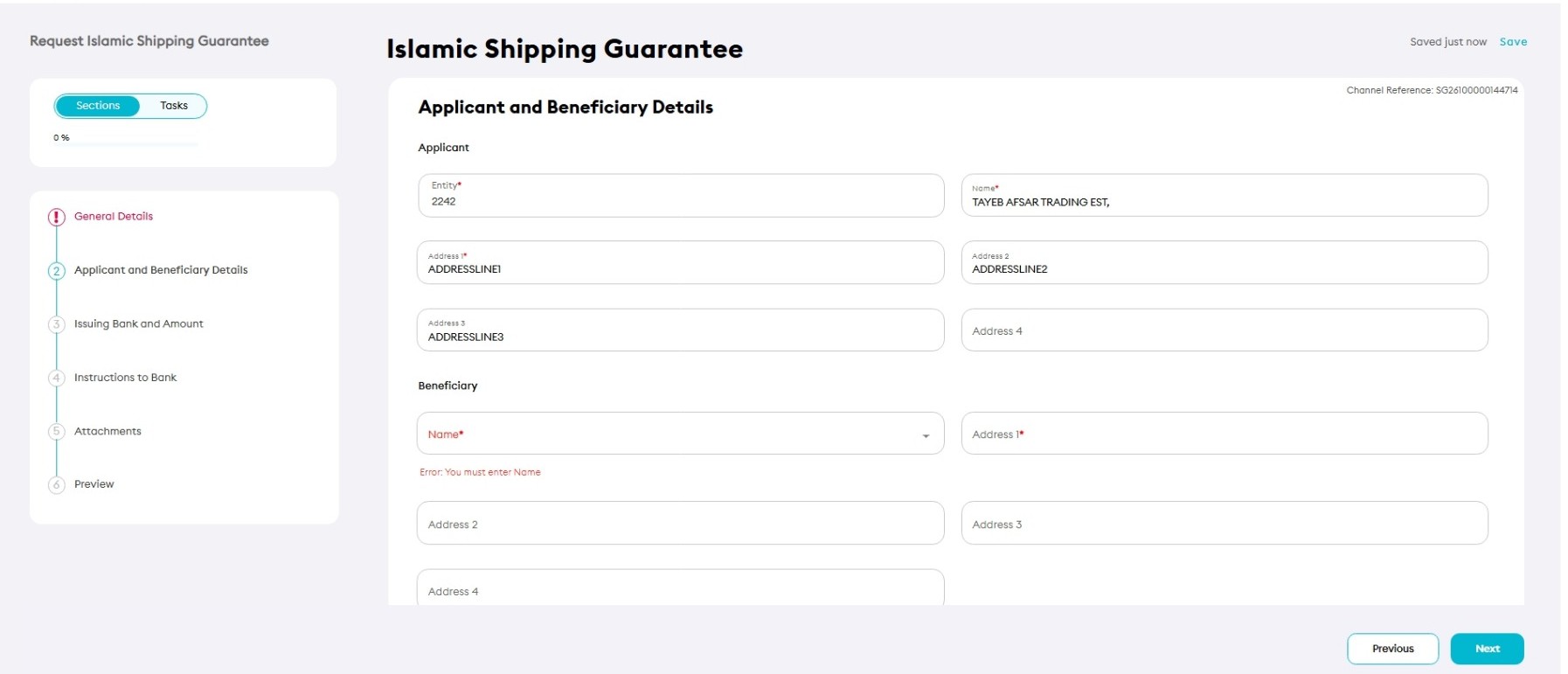
Applicant Details
The Applicant information is automatically populated and is generally non-editable.
This includes:
- Applicant Name
- Applicant Address
Beneficiary Details
Enter or select the beneficiary information.
You may:
- Select an existing beneficiary
- Create a new beneficiary
- Save a new beneficiary for future use
Provide:
- Beneficiary Name
- Beneficiary Address
- Beneficiary Country
Support Tip: Verify beneficiary information carefully before submission, as incorrect details may delay processing.
Step 5: Complete Issuing Bank and Amount Details
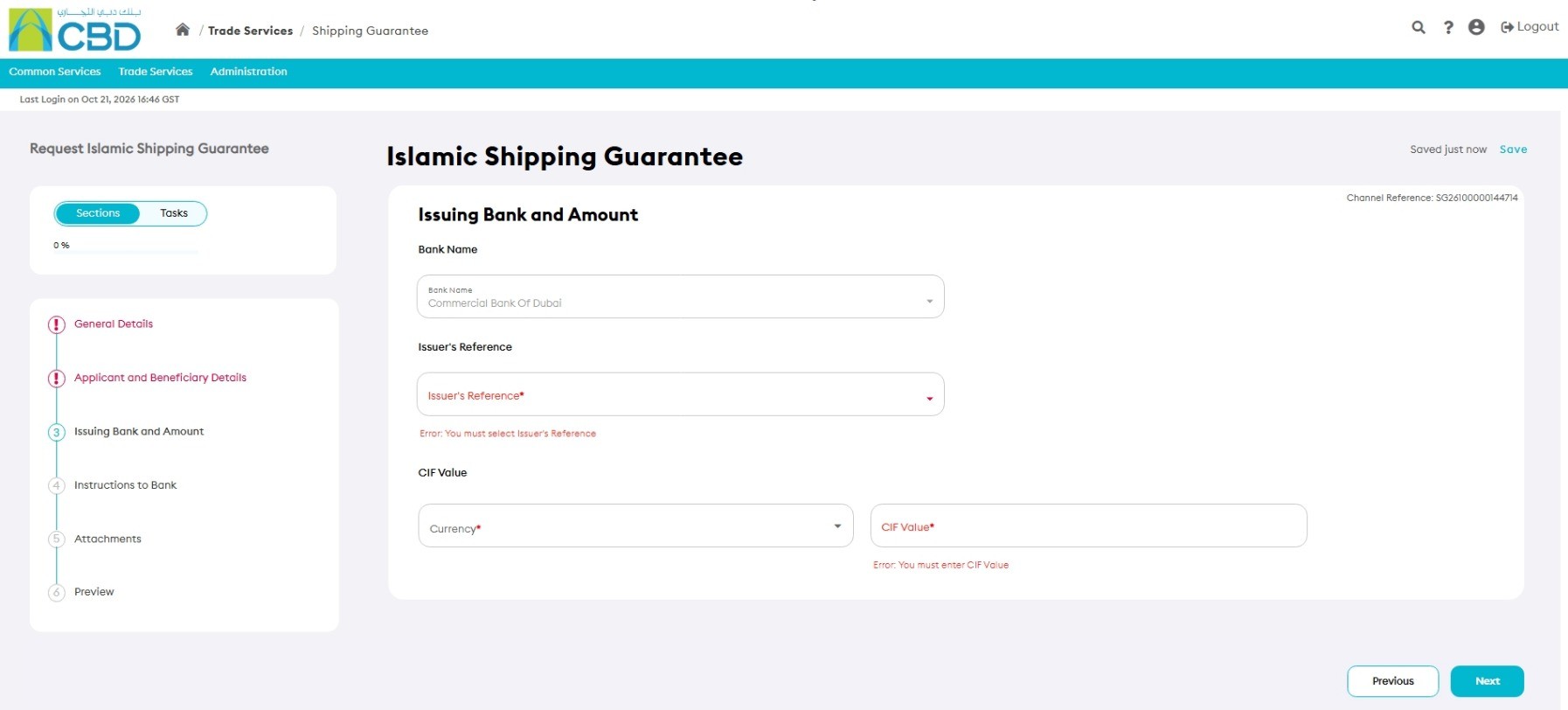
Bank Name
The Issuing Bank defaults to Commercial Bank of Dubai (CBD) and cannot be modified.
Issuer's Reference
Enter or review the reference associated with the transaction.
CIF Currency
Select the applicable currency from the drop-down list.
CIF Value
Enter the Cost, Insurance, and Freight (CIF) value of the shipment.
Step 6: Complete Instructions to Bank
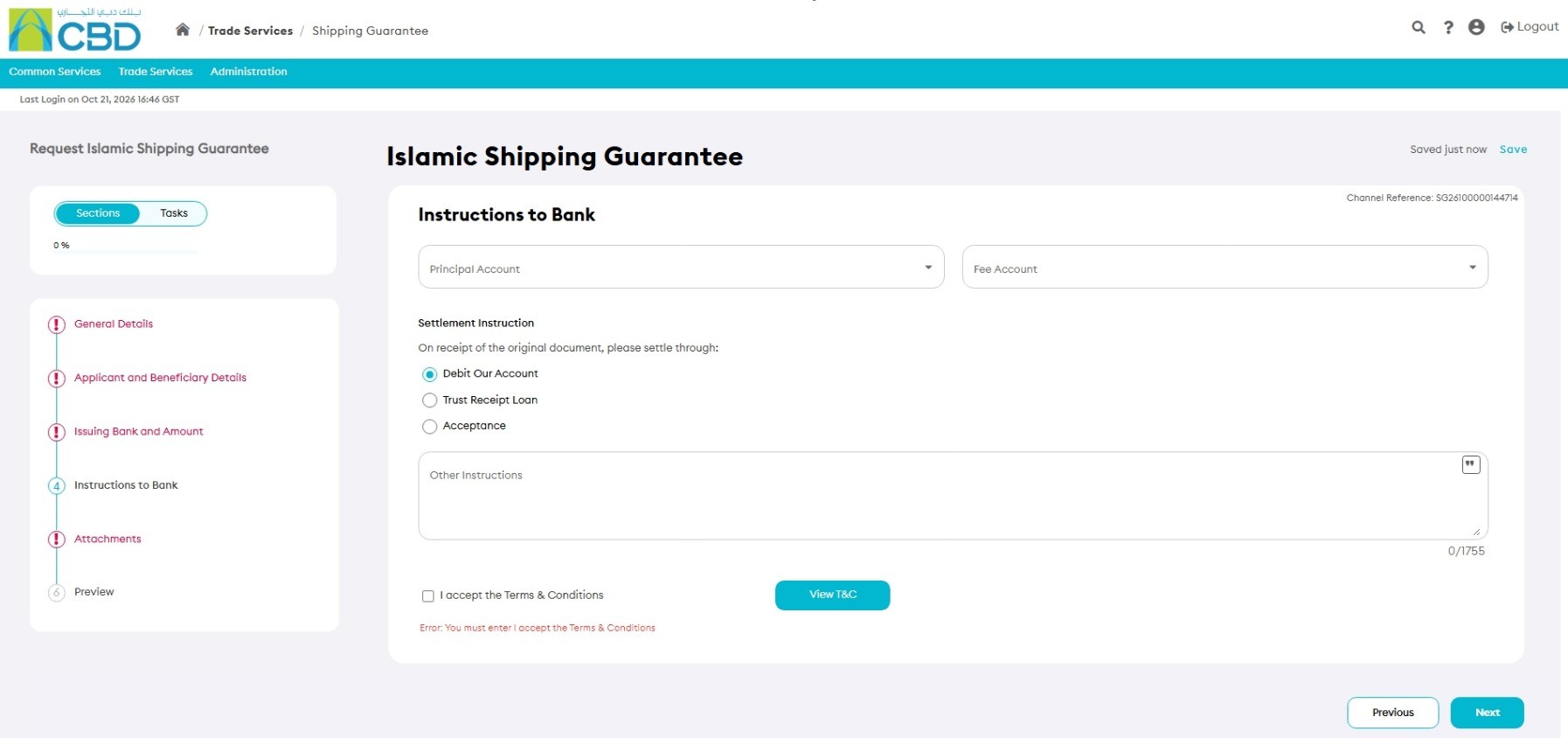
Principal Account
Select the account that will be used for principal transaction debits throughout the lifecycle of the Shipping Guarantee.
Fee Account
Select the account that will be used for fees, charges, and commissions related to the Shipping Guarantee.
Other Instructions
Enter any additional information or instructions that should be provided to the bank.
Predefined phrases may also be selected where available.
Step 7: Complete Trust Receipt Loan Details (If Applicable)
If Trust Receipt Loan is selected, additional loan information must be completed before the request can be submitted.
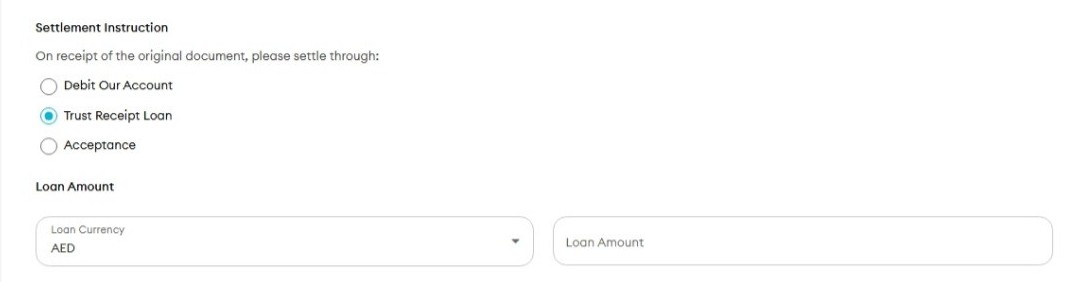
Important: Ensure all loan-related information is completed accurately before proceeding.
Step 8: Upload Supporting Documents
Attach any supporting documents required for the request.
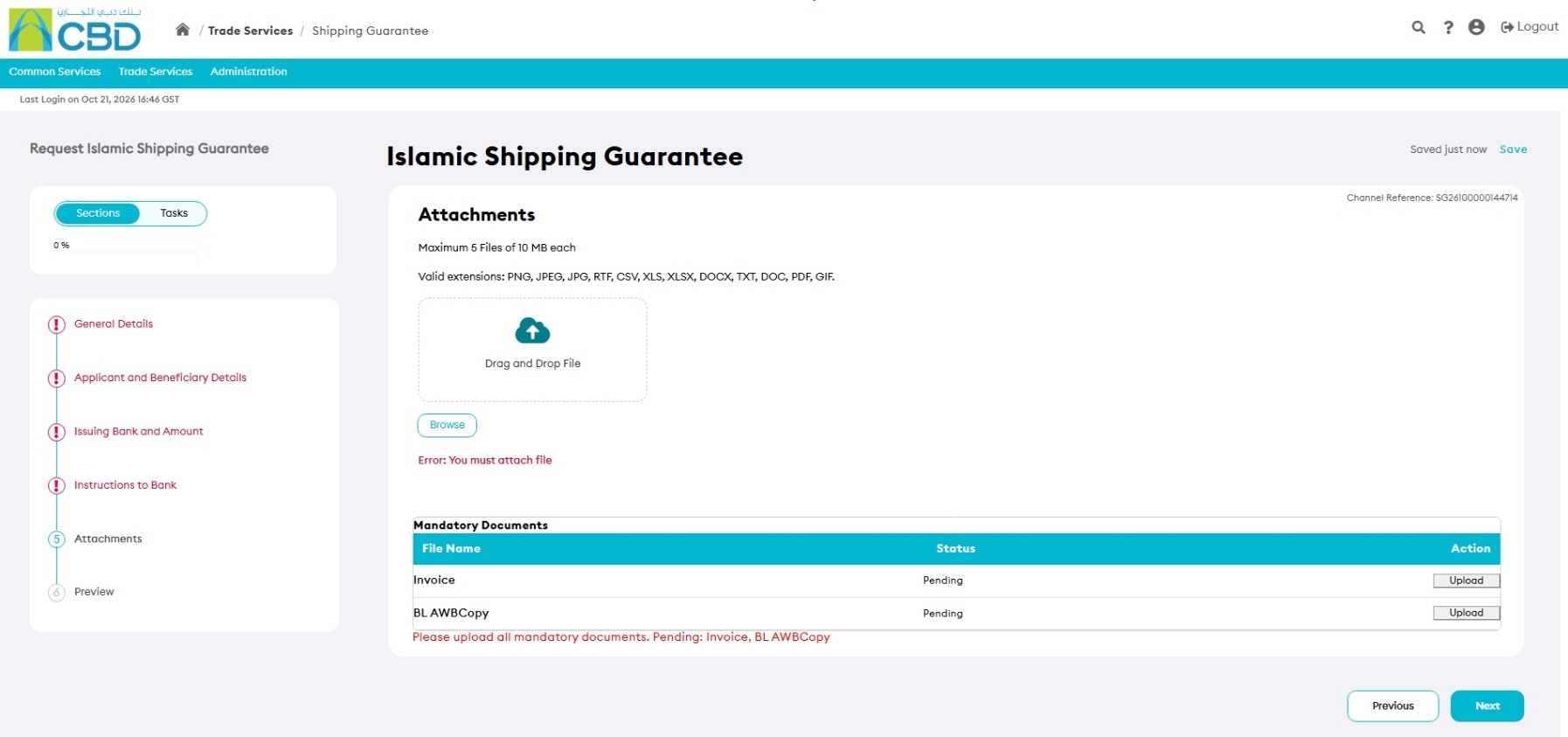
Attachment Requirements
- Maximum of 5 files
- Maximum file size: 5 MB per file
Supported File Types
|
|
|
Examples of Supporting Documents
- Proforma Invoice
- Shipping Documents
- Transport Documents
- Specimen Signature
- Supporting Trade Document
Step 9: Review the Application
Open the Preview section and review all information entered.
Verify:
|
|
|
If changes are required, return to the relevant section and update the information.
Step 10: Submit the Request
- Review all information carefully.
- Click Submit.
If the request is submitted successfully, an acknowledgment message will be displayed.