
Overview
This guide provides step-by-step instructions for creating and submitting an Islamic Financing Request through iTrade.
Islamic Financing Requests enable customers to apply for Shariah-compliant financing facilities, including Direct Murabaha and Tawarruq financing structures.
Prerequisite: Users must have the appropriate permissions to create Islamic Financing Requests. If access is unavailable, contact your Corporate Administrator.
Step 1: Access Financing Request Services
- From the iTrade Dashboard, select Trade Services.
- Click Financing Request.
This will open the Financing Request Dashboard.
Step 2: Create a New Islamic Financing Request
- Click Initiate Islamic Financing Request.
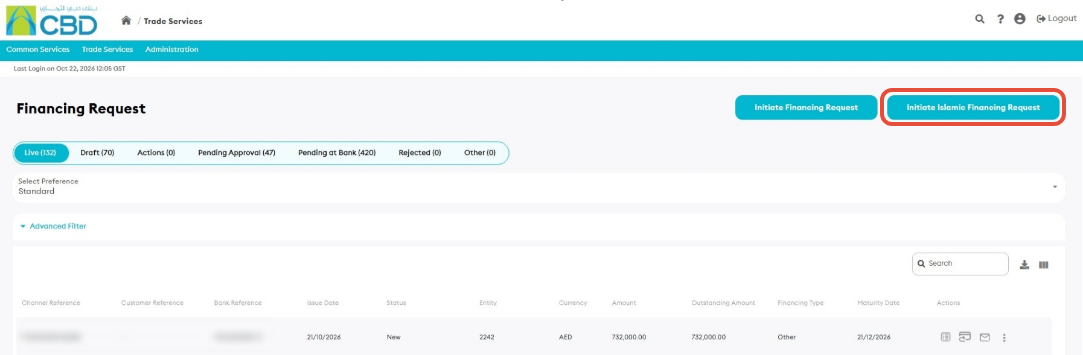
This will open the Islamic Financing Request application form.
Step 3: Complete the General Details
Enter all mandatory fields marked with a red asterisk (*).
Navigation Tip: Use Next and Previous to move between sections, or select a section directly from the navigation panel on the left side of the screen.
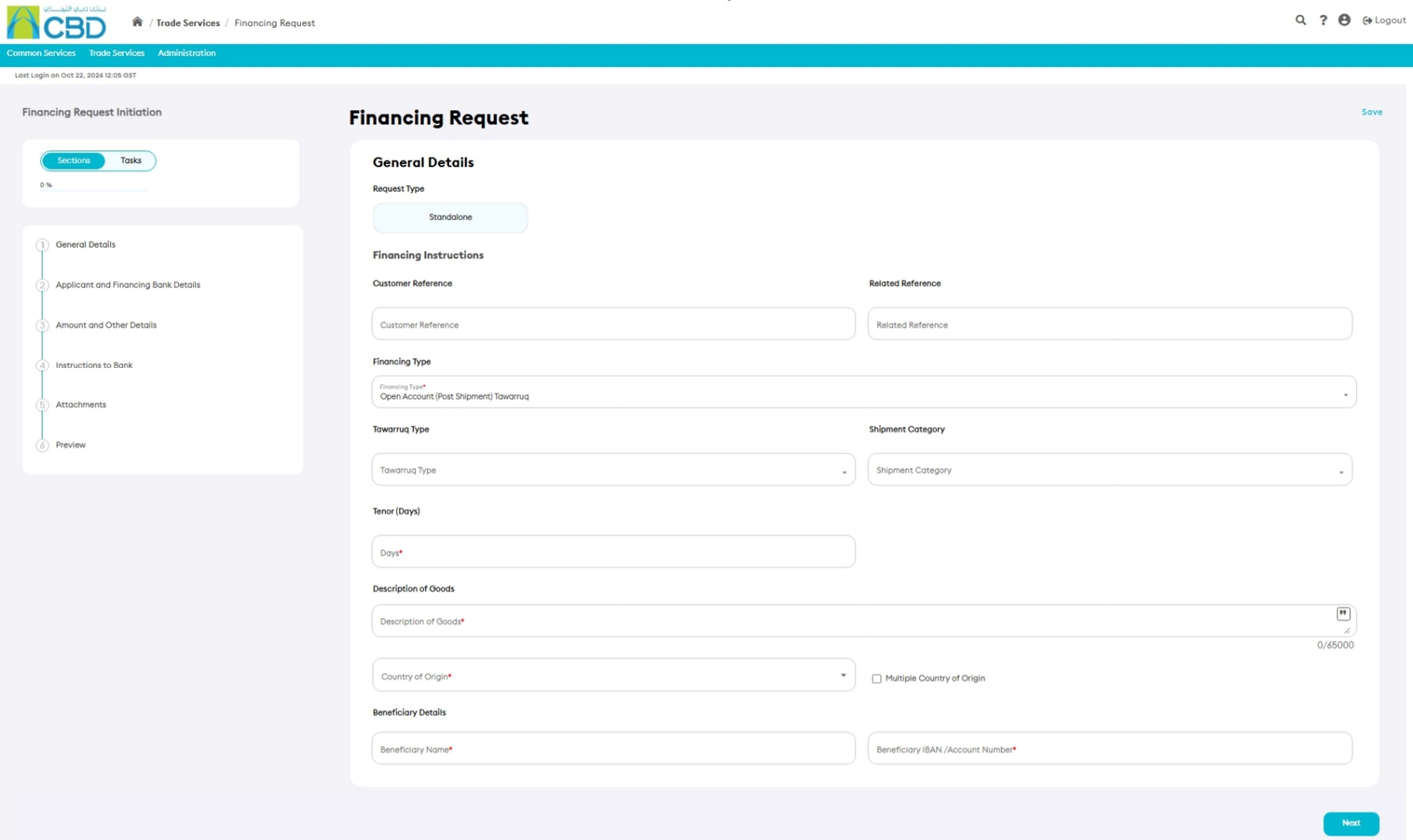
Request Type
The Standalone option is selected by default.
Customer Reference
Enter an internal reference that will be used within your organization to identify the Islamic Financing Request.
Related Reference
Enter any additional reference information related to the financing request.
Tawarruq Type
If Tawarruq is selected as the financing type, select the applicable Tawarruq option available in the system.

Tenor
Enter the financing tenor (repayment period).
Description of Goods
Provide a description of the goods related to the financing request.
Predefined descriptions may be available for selection.
Beneficiary Bank Details
Select the Beneficiary Bank SWIFT Code.
The bank information will populate automatically once a valid SWIFT Code has been selected.
Payment Instructions
Enter the payment instructions applicable to the financing request.
Step 4: Complete Applicant Details
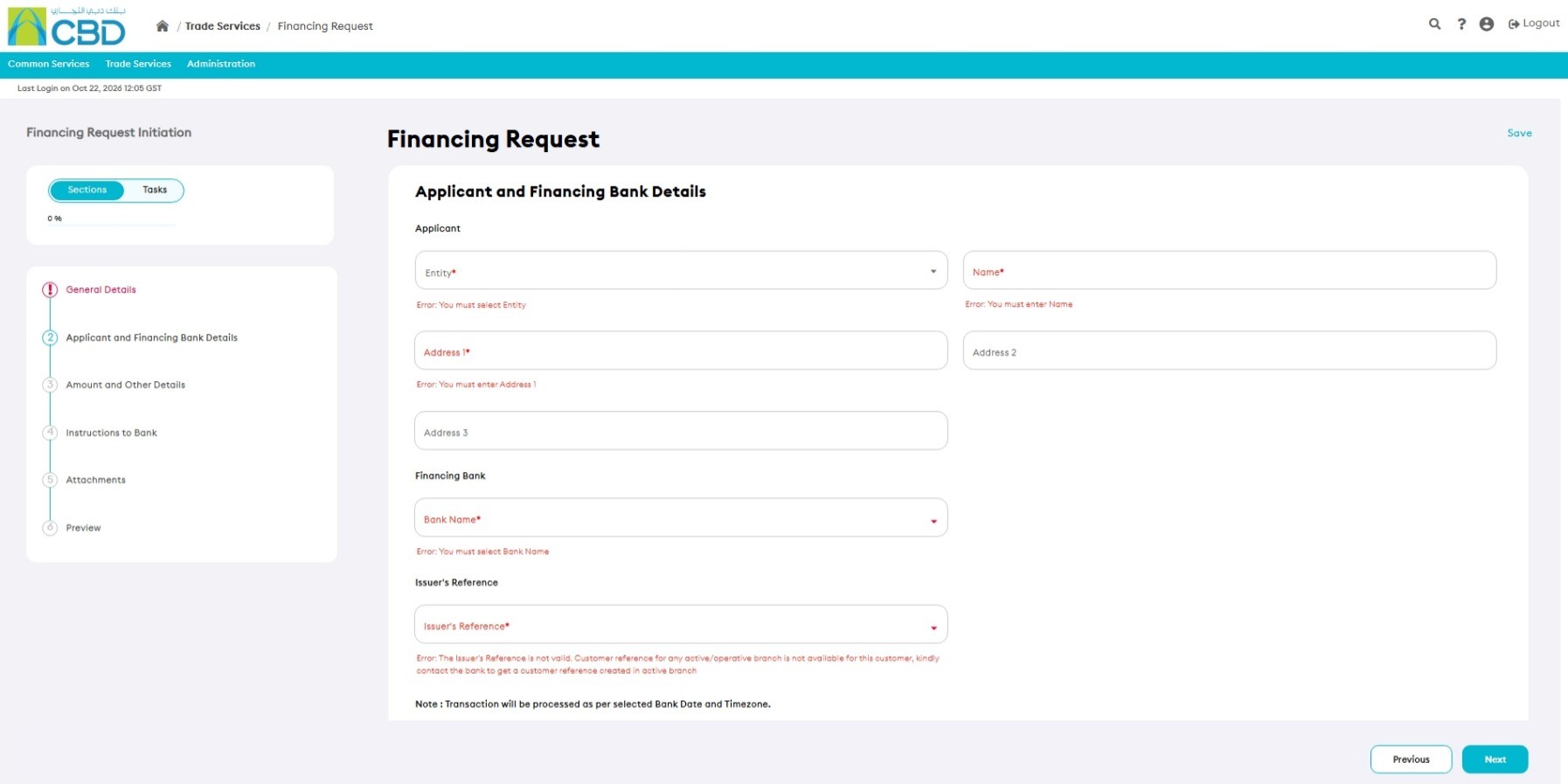
Entity
Select the entity submitting the request.
- If you are assigned to multiple entities, select the required entity from the drop-down list.
- If you are assigned to only one entity, the field will be populated automatically.
Applicant Information
The following information is generally pre-populated:
- Applicant Name
- Applicant Address
Bank Name
Select the bank that will provide the financing facility.
The available list displays banks with which your company maintains a relationship.
Issuer's Reference
Select or enter the reference under which the financing transaction will be recorded.
The available references are defined by the selected bank and may vary depending on the financing arrangement.
Note: The available references are maintained by the bank. If bank-specific references are not configured, a general reference field may be displayed instead.
Step 5: Complete Amount and Financing Details
Invoice Amount
Select the currency and enter the invoice amount related to the financing request.
Finance Amount
Select the currency and enter the financing amount being requested.
Additional Details
Enter any supplementary information related to the financing request.
Where available, predefined phrases can be selected from the list of phrases.
Important: Ensure that the Finance Amount is supported by the attached documentation and matches the underlying trade transaction.
Step 6: Complete Instructions to Bank
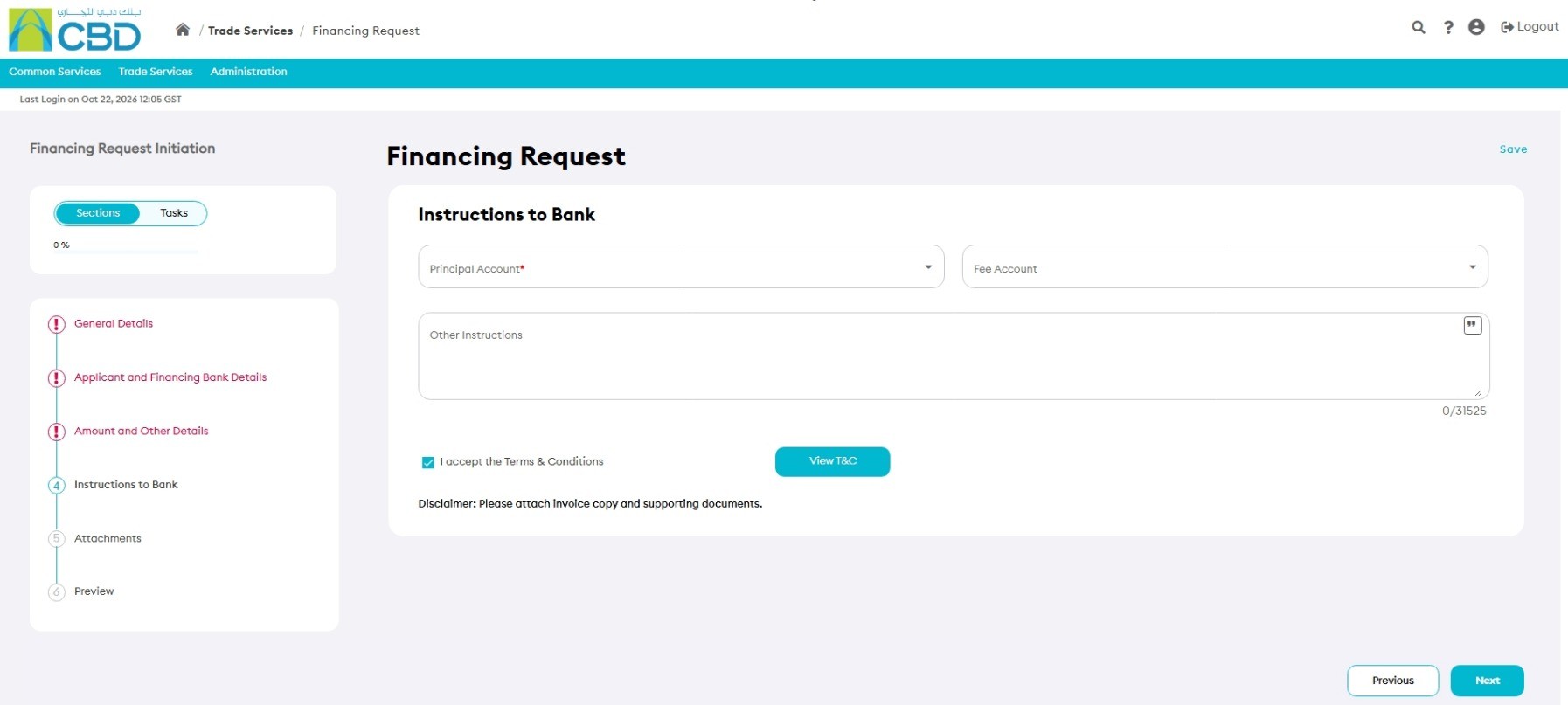
Principal Account
Select the account that will be debited upon maturity for settlement of the financing facility.
Fee Account
Select the account that will be used for charges, commissions, and fees associated with the financing facility.
Other Instructions
Enter any additional instructions that should be provided to the bank.
Predefined phrases may be available for selection.
Step 7: Upload Supporting Documents
Attach all supporting documentation required for the Islamic Financing Request.
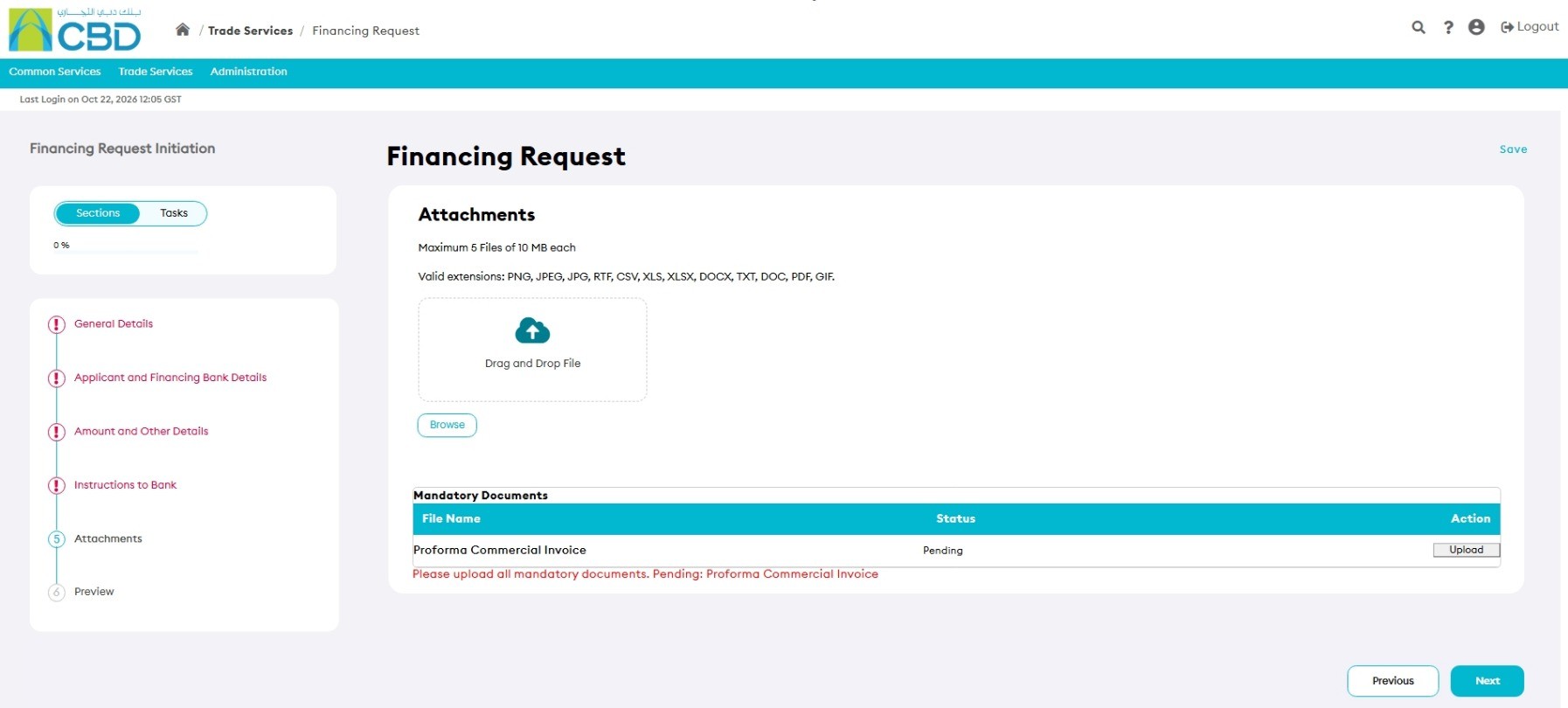
Attachment Methods
- Drag and Drop
- Browse
Attachment Requirements
- Maximum of 5 files
- Maximum file size: 5 MB per file
Supported File Types
|
|
|
Examples of Supporting Documents
- Commercial Invoice
- Proforma Invoice
- Trade Documents
- Specimen Signature
- Supporting Financing Documents
Step 8: Review the Application
Open the Preview section and review all information entered.
Verify:
|
|
|
If changes are required, return to the relevant section and update the information.
Step 9: Submit the Request
- Review all information carefully.
- Click Submit.
If the request is submitted successfully:
- A confirmation message will be displayed.
- A reference number may be generated for tracking purposes.